What your readers can do with it
Subnetting is learned by doing dozens of problems, and checking each one by hand takes as long as solving it. The subnet calculator checks an answer in a second and then shows why it is right, with the address, the mask, the AND result and the broadcast lined up bit by bit, network bits in green and host bits in orange.
- IPv4: network, broadcast, first and last host, usable hosts, mask, wildcard, address type and the next and previous subnets. A prefix, a dotted mask or a wildcard all work.
- Split and summarize: divide a network by number of subnets, new prefix or hosts per subnet, or summarise a list of routes.
- VLSM: one row per subnet with the hosts it needs; the planner places the largest first.
- IPv6 prefixes, and a Practice tab that sets CCNA-style questions and marks five answers.
Where it fits
Put it at the end of a subnetting lesson with a short list of addresses to try, or in a lab guide where students plan the addressing for a small office before they configure the routers. A networking blog can use the VLSM tab to show a plan for a realistic case, such as a branch with sales, HR, a lab and a WAN link, and let readers change the host counts.
Suggested size
The default frame is 1,200 px high and up to 960 px wide, which fits the IPv4 result, its cards and the details table. The binary working below runs the page to about 1,990 px at that width and scrolls inside the frame. A VLSM plan fits in about 1,430 px, so 1,450 px shows a whole plan with nothing hidden. On a phone the IPv4 tab is about 2,870 px tall, so readers will scroll inside the frame whatever height you choose.
Open it on a VLSM plan
This link opens the VLSM tab for 192.168.1.0/24 with four subnets: Sales needs 50 hosts, HR 20, Lab 10 and a WAN link 2.
https://widemath.com/embed/subnet-calculator/?tab=vlsm&net=192.168.1.0/24&hosts=50,20,10,2&names=Sales,HR,Lab,WAN%20link
The plan gives Sales 192.168.1.0/26, HR 192.168.1.64/27, Lab 192.168.1.96/28 and the WAN link 192.168.1.112/30, using 116 of the 256 addresses. For a single address, ?ip=10.0.0.0/22 is all a link needs.
Add it in three steps
- Load the plan or keep the default /26 example, set the height, and press Copy embed code.
- Paste the code into your course page: the HTML editor in Canvas or Moodle, or a Custom HTML block in WordPress.
- Give students a few addresses to work by hand first, then check them in the widget.
Frequently asked questions
Does the widget show the binary working?
Yes. Under every IPv4 result it lines up the address, the mask, the network and the broadcast in binary, with the network and host bits in two colours, followed by numbered steps including the magic number shortcut.
Can students practise inside the widget?
Yes. The Practice tab sets a question, takes five answers (network, broadcast, first host, last host, usable hosts) and marks them.
Does it handle /31 and /32?
Yes. A /31 is treated as a two-address point-to-point link under RFC 3021, and the VLSM planner has an option to use /31 for two-host links.
More calculator widgets
Want the explanations and worked examples as well? They are on the full Subnet Calculator page. All 24 widgets, each with a Copy code button, are in the calculator widget gallery.
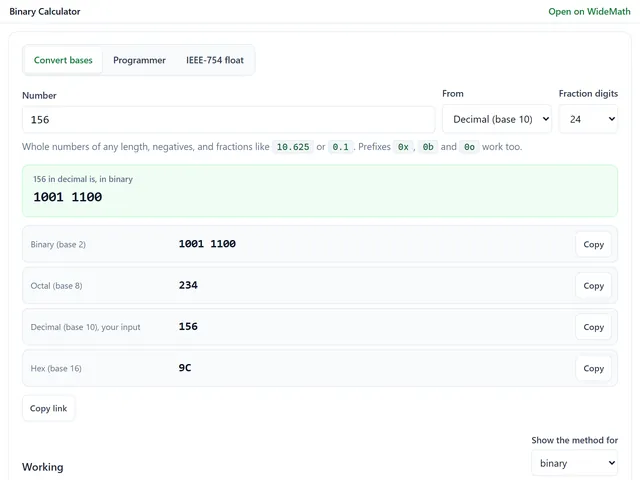
Binary Calculator
Base conversion with working, two's complement, bitwise operations and IEEE 754 floats.
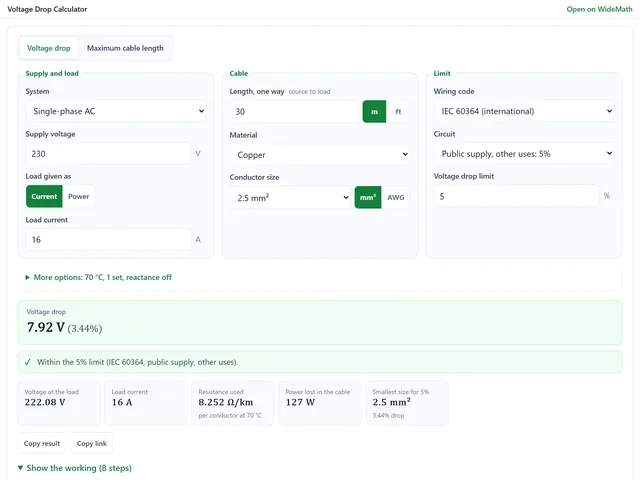
Voltage Drop Calculator
Voltage drop in AWG or mm² against NEC, BS 7671, IEC or AS/NZS limits, with the smallest size.
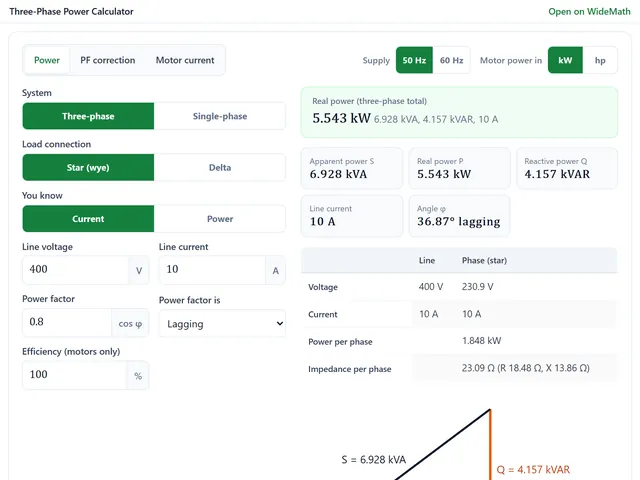
Three-Phase Power Calculator
kW, kVA, kVAR and current for star or delta, capacitor bank sizing and a resonance check.