What your readers can do with it
Number systems are the first topic in most computing courses, and the one where students want to see the method, not just the answer. The binary calculator has three tabs:
- Convert bases: binary, octal, decimal and hex, with repeated division or place values as the working. Fractions such as 0.1 convert too, with as many digits as the reader asks for, and whole numbers stay exact at any length.
- Programmer: an 8, 16, 32 or 64-bit word, signed or unsigned. Add, subtract, multiply, divide, AND, OR, XOR, NOT, the shifts and rotates, with overflow shown. Readers can tap any bit to flip it.
- IEEE-754 float: half, single or double precision. Type a decimal to see its sign, exponent and mantissa bits, the value actually stored and the rounding error, or type a bit pattern such as 0x40490FDB to decode it.
Where it fits
Use it in a lesson on two's complement, where flipping one bit and watching the signed value change says more than a paragraph. It also belongs in any post on why 0.1 + 0.2 is not exactly 0.3 in most programming languages, and on an embedded systems course page where students check shifts and masks in a 16-bit word.
Suggested size
The default frame is 1,200 px high and up to 960 px wide, which fits the Convert tab with its results and the start of the working. The IEEE-754 tab with its working is about 1,570 px at that width, so a page about floats reads better at 1,400 px or more. On a phone the Convert tab is about 1,550 px tall and scrolls inside the frame.
Open it on 0.1 as a float
The f and p parameters open the IEEE-754 tab with a value and a precision. This link shows how 0.1 is stored in single precision:
https://widemath.com/embed/binary-calculator/?f=0.1&p=32
The widget shows the bit pattern 0 01111011 10011001100110011001101, hex 0x3DCCCCCD, and the value actually stored: 0.100000001490116119384765625. Other links work the same way: ?n=255&from=10 converts 255, and ?tab=prog&a=100&b=60&op=add&w=8&s=s&ib=10 adds 100 and 60 in a signed 8-bit word, where the sum overflows.
Add it in three steps
- Load a problem if your lesson needs one, then press Copy embed code.
- Paste it into the page: a Custom HTML block in WordPress, a Code block in Squarespace, or Blogger's HTML view.
- Below it, ask readers to change one thing, such as the word size or a single bit, and explain what happened.
Frequently asked questions
Does the widget show how to convert by hand?
Yes. The Convert tab shows repeated division by 2 from decimal, place values back to decimal, and the grouping shortcut between binary, octal and hex.
Can students see signed and unsigned results?
Yes. The Programmer tab works in a chosen word size, signed or unsigned, so 100 + 60 in a signed 8-bit word shows the overflow that a plain calculator hides.
Which float formats does it cover?
Half (16-bit), single (32-bit) and double (64-bit) precision, both ways: decimal to bits and bits to decimal. Rounding is round to nearest, ties to even.
More calculator widgets
Want the explanations and worked examples as well? They are on the full Binary Calculator page. All 24 widgets, each with a Copy code button, are in the calculator widget gallery.
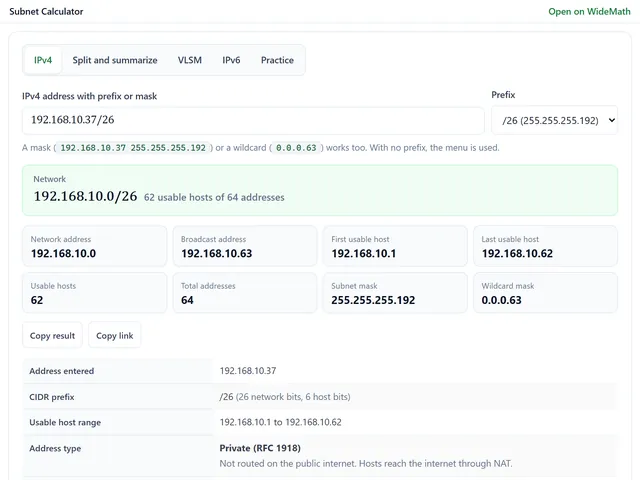
Subnet Calculator
IPv4 and IPv6 subnets with binary working, VLSM plans and CCNA-style practice.
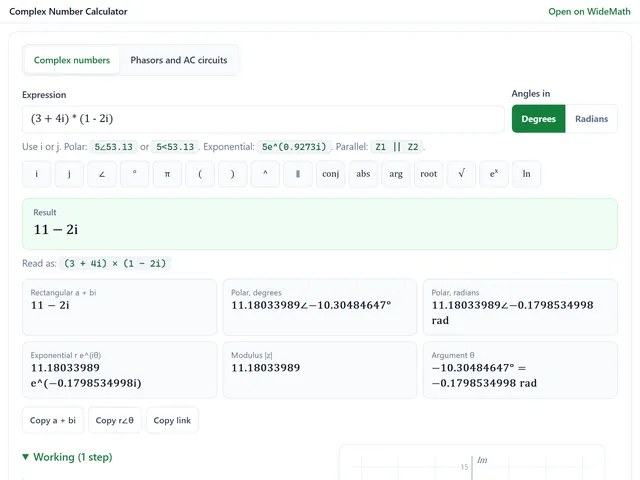
Complex Number Calculator
Complex numbers and phasors in every form, plus series and parallel AC circuits.
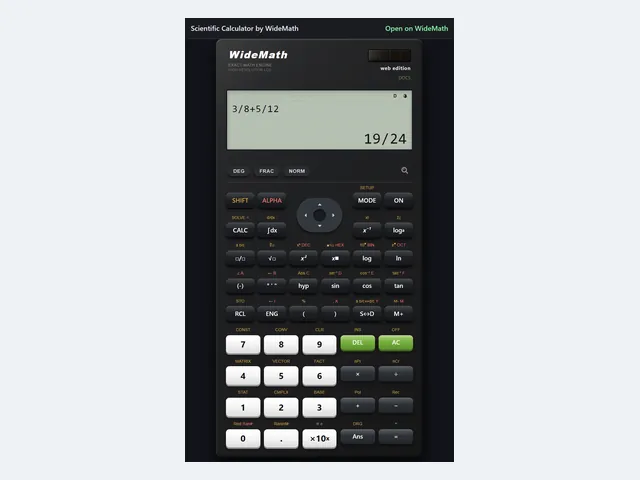
Scientific Calculator
A Casio-style keypad with exact fractions and eight modes, narrow enough for a sidebar.