What your students can do with it
The GATE-style virtual calculator has the keys of the exam's on-screen calculator in the same order, worked with a mouse or a finger. Habits from a handheld calculator trip people up on it: the function key comes after the number, so 30 then sin gives 0.5, and two-number keys such as logyx take the first number, the key, the second number and =. The widget shows every key pressed, so a student can see exactly where a sequence went wrong.
- Exam mode switches the keyboard off, hides the tips and runs a countdown, which is the closest thing to the exam hall.
- Numerical answer drills on compound interest, logarithms, trigonometry, roots of a cubic, exponential decay, powers of ten and combinations, each with the key sequence and working underneath.
- Deg and Rad switching, memory keys (MS, MR, M+, M-) and a key guide.
Where it fits
Coaching institutes can put it beside a set of numerical answer type questions, so students solve each one on the calculator they will meet on the day. A GATE preparation blog can add it under a post on calculator shortcuts, and a college placement or exam cell page can offer it as the warm-up before a mock test.
Suggested size
The default frame is 800 px high and up to 960 px wide: the calculator on the left and the drill panel on the right, with nothing hidden. GATE is a computer-based test, so most of your readers will practise on a laptop, where this layout works best. On a phone the two panels stack and the widget is about 1,670 px tall, so the drill scrolls inside the frame; raise the height to around 1,700 px if your page is read mostly on phones.
A key sequence that opens ready
Add ?keys= with the keys in order, separated by commas: numbers as written, other keys by name (add, sub, mul, div, pow, logy, exp, open, close, eq, neg, sin, ln). This one works out the logarithm of 81 to base 3:
https://widemath.com/embed/gate-virtual-calculator/?keys=81,logy,3,eq
The display shows 81 log base 3 on the top line and 4 as the result, and the keys-pressed strip lists 81, logyx, 3 and =. Two more parameters are useful on a mock test page: exam=1 opens in exam mode, and drill=ci starts on a compound interest drill.
Add it in three steps
- Pick a size above and press Copy embed code.
- Paste it into the HTML of your notes page or learning management system, under the questions it should help with.
- Tell students to tick Exam mode before they start, so they practise with the mouse only.
Frequently asked questions
Is this the official GATE calculator?
No. It is an independent practice version with the same keys in the same order. WideMath has no connection with GATE's organisers (the IITs and IISc) or with TCS, which runs the exam platform.
Why does sin come after the number?
That is how the exam's on-screen calculator works: a one-number function acts at once on the number in the display. Type 30, then sin, and the display shows 0.5 in Deg. Practising this order is the main reason to use the widget.
Can students practise without a keyboard?
Yes. Exam mode turns the keyboard off, so every digit is a click, as on the day. It also hides the tips and starts a countdown.
Can I open a drill question from the link?
Yes. Add drill= with a topic (ci, logs, trig, cubic, decay, sci or comb), and seed= with a number if every student should get the same question.
More calculator widgets
Want the explanations and worked examples as well? They are on the full GATE-Style Virtual Calculator page. All 24 widgets, each with a Copy code button, are in the calculator widget gallery.
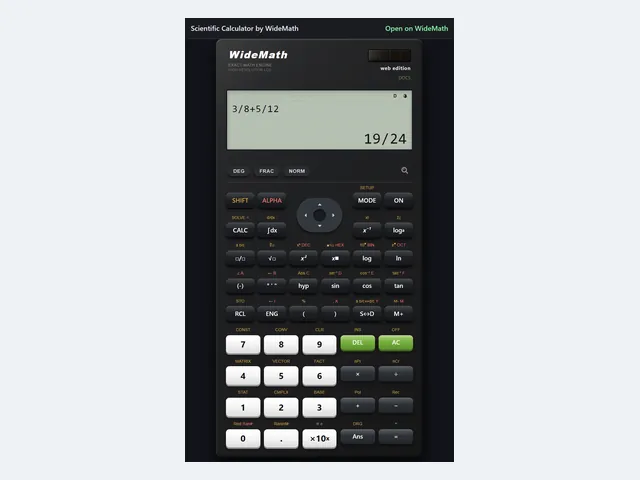
Scientific Calculator
A Casio-style keypad with exact fractions and eight modes, narrow enough for a sidebar.
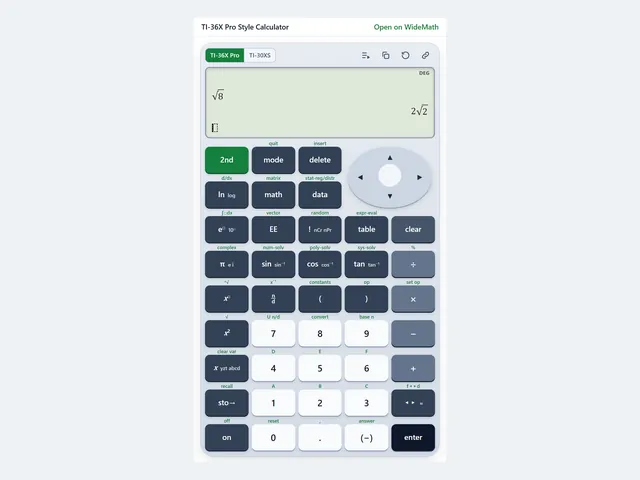
TI-36X Pro Style Calculator
FE exam keystrokes on a TI-36X Pro style keypad, with a TI-30XS MultiView switch.
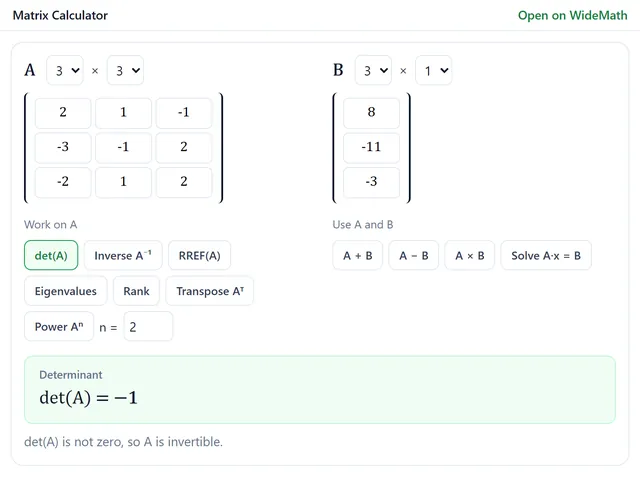
Matrix Calculator
Exact-fraction determinants, inverses, RREF and eigenvalues up to 6 × 6, with every row operation.