What your readers can do with it
Engineering students preparing for the FE exam learn one calculator and then use it under time pressure, so the key order matters more than the maths. This widget is the TI-36X Pro style calculator from WideMath: the same rows of keys, the green 2nd labels above them and a MathPrint display that stacks fractions and roots.
- Solve a quadratic or cubic with poly-solv, two or three simultaneous equations with sys-solv, and one awkward equation with num-solv.
- Take a derivative at a point or a definite integral from the 2nd functions above ln and ex.
- Toggle answers between fractions, roots, π and decimals, and walk back through earlier entries with the arrow keys.
- Use the icons along the top: Examples plays a worked sequence on the keypad, then Copy result, Reset and Share, which copies a link that replays the keys.
- Switch the keypad to the TI-30XS MultiView order, the layout of the GED test's on-screen calculator, with the switch beside those icons.
Where it fits
Put it next to a worked FE problem and write the key sequence under the question. Readers press along, compare their display with yours, and find the step where their own handheld would have gone wrong. It works the same way on a GED maths practice page with the TI-30XS layout selected.
Suggested size
The default frame is 1,000 px high and up to 480 px wide. The calculator sizes itself to the frame, and that height shows the display and every key at any width from a 320 px phone column up to 480 px. At the full 480 px width it fits in about 920 px if you need a shorter frame. Keep the width at 480 px or less on a wide page, so the keys stay the size of a real calculator. On a phone the frame shrinks to the screen width and the keys stay large enough to tap.
A problem that replays its own keys
The widget starts blank, like a handheld after a reset. The keys parameter presses a list of keys, separated by commas, on that fresh calculator. This link solves 2x² − 3x − 5 = 0 with poly-solv:
https://widemath.com/embed/ti-36x-pro-calculator/?keys=2nd,cos,enter,2,down,neg,3,down,neg,5,enter
The widget opens on the solver screen with x1 = 5/2 and x2 = −1. Readers can then press 2nd quit and try the next question themselves. For a GED page, ?model=30xs on its own opens the TI-30XS MultiView layout.
Add it in three steps
- Copy the code above, after loading a problem if you want one.
- Paste it into an HTML block on the lesson page: Custom HTML in WordPress, a Code block in Squarespace, or the HTML editor in Canvas.
- Write the key sequence beside the widget in words, such as "2nd [poly-solv], enter, then the three coefficients", so readers can follow along.
Frequently asked questions
Is this a real TI-36X Pro?
No. It is an independent TI-36X Pro style practice tool built by WideMath, not made or endorsed by Texas Instruments. In the FE exam candidates use an approved handheld; this widget is for learning which keys to press.
Can it show the TI-30XS MultiView layout instead?
Yes. Readers can tap the TI-30XS switch at the top of the calculator, or you can add model=30xs to the address in the code so the widget opens on that layout.
How do I write my own key sequence link?
List the keys after keys=, separated by commas, as in keys=2nd,sq,8,enter for the square root of 8. The easiest way is to press the keys on the full calculator page and use its Share icon, then swap widemath.com/ for widemath.com/embed/ in the address.
Why does the widget open with an empty screen?
It starts the way a handheld does after a reset, so readers practise from a clean state. To open it on a worked answer instead, put a keys= sequence in the address inside the code.
More calculator widgets
Want the explanations and worked examples as well? They are on the full TI-36X Pro Style Calculator page. All 24 widgets, each with a Copy code button, are in the calculator widget gallery.
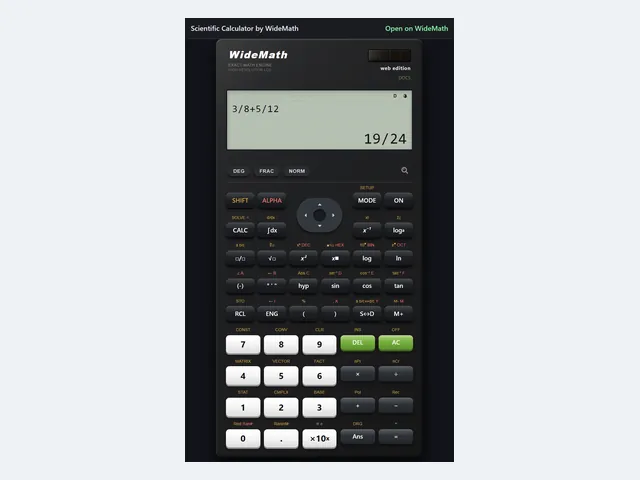
Scientific Calculator
A Casio-style keypad with exact fractions and eight modes, narrow enough for a sidebar.
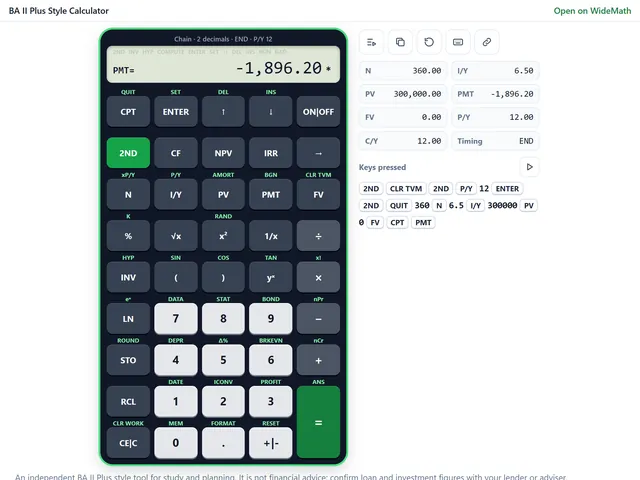
BA II Plus Style Calculator
BA II Plus style keys for TVM, NPV, IRR, bonds and depreciation, with the registers in view.
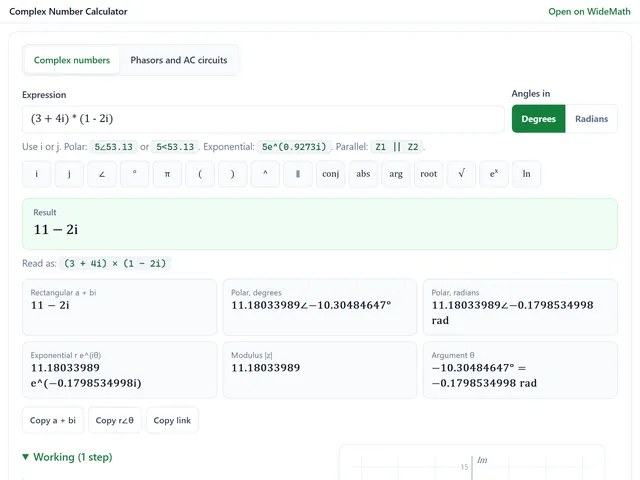
Complex Number Calculator
Complex numbers and phasors in every form, plus series and parallel AC circuits.